Archify: the skill for verified architecture diagrams in Claude Code or Codex

Archify is an agent skill — a package of instructions and tools that an agent like Claude Code can read and invoke — for drawing architecture diagrams, validated before they’re shown to you. Asking for one takes a single sentence: it’s as easy to generate as asking for anything else in chat, and it’s just as useful for understanding a system at a glance as it is for showing it off, without reading it file by file. It’s maintained by tt-a1i (opens in a new tab) under the MIT license: free, no account, no API key. It isn’t Claude-only either: it works the same way with Codex CLI, Cursor, and opencode.
The problem it solves is concrete. Asking an agent for “a Mermaid diagram” is fast, but nothing checks that what it draws matches the real code: it can hand back an arrow between two services that don’t even call each other, without that being a lie on purpose — the agent wrote the diagram the same way it writes any answer, predicting what a reasonable one would look like for that question. Archify splits that step in two: the agent first writes a typed description of the system, and only draws it after a validator checks it.
Installing it
# Install it once, for every project
npx skills add tt-a1i/archify -g

# Try it once, without installing anything
npx skills use tt-a1i/archify@archify --agent codex
Once that’s done, whichever agent you use can invoke it as soon as you ask for it in chat. Concrete examples of what to actually type are further down.
How it works: nothing gets drawn by hand
The difference from asking for “a Mermaid diagram” is in what happens between the ask and what you see. Archify splits that distance into five steps, and none of them get skipped:
The step that changes everything is the second one. Before showing you anything, Archify checks that the JSON the agent wrote matches a fixed schema, that the layout doesn’t leave overlapping nodes or ambiguous arrows, and that the HTML/SVG it’s about to output is valid. If something fails, you don’t get a broken diagram: the agent gets a JSON back with the rule code that failed, exactly which node broke it, and which fixes are supported. The agent corrects it and tries again, on its own, without you ever noticing the first attempt failed.
The typed JSON behind it
What the agent writes in step 1 isn’t Mermaid, and it isn’t a drawing: it’s a JSON document with a fixed shape, which Archify’s documentation calls the IR (intermediate representation). Each diagram type has its own schema, and that schema is exactly what step 2 validates against.
Here’s how the first components of the file Archify uses to draw its own architecture actually start — it’s real, it’s in its own repository, not an example invented for this article:
{
  "schema_version": 1,
  "diagram_type": "architecture",
  "meta": {
    "title": "Archify",
    "subtitle": "Agent skill → JSON IR → typed renderers → standalone HTML"
  },
  "components": [
    { "id": "user", "type": "external", "label": "You", "sublabel": "NL or Mermaid" },
    { "id": "agents", "type": "frontend", "label": "Agent Hosts", "sublabel": "Claude · Codex · opencode" },
    { "id": "ir", "type": "messagebus", "label": "JSON IR", "sublabel": "schema_version: 1" }
  ],
  "connections": [
    { "from": "user", "to": "agents", "variant": "emphasis" },
    { "from": "agents", "to": "ir", "label": "write IR", "variant": "emphasis" }
  ]
}
Every component has a position, a size, and a type that decides how it’s
drawn (external, frontend, backend, security, and several more).
Every connection declares where it goes from and to, and can carry a label or
a variant that changes the stroke — emphasis for the primary path,
dashed for something secondary. None of those fields are free-form: if the
agent writes one the schema doesn’t recognize, step 2’s validation rejects it
right there.
How Archify itself is put together
The file above, once complete and validated, produces this diagram. It’s the tool’s real architecture, told in its own words:
Two things become clearer looking at this diagram than reading a list of features. First, Archify doesn’t replace Claude Code or Codex — it sits next to them and gives them a place to write in a verifiable format. Second, the final file — the HTML you open in a browser — doesn’t depend on anything else once it’s generated: it doesn’t call any server, doesn’t need a connection, and can be emailed or uploaded anywhere.
The one above is small on purpose, so it reads at a glance. With a real, larger system the result follows the same criteria: every box is a real component, every arrow a real relationship, with boundaries and colors by type. This is the diagram Archify delivered for an AI agent’s memory system — a Markdown repository as the source of truth, a hybrid search engine, and a skills layer on top of it:
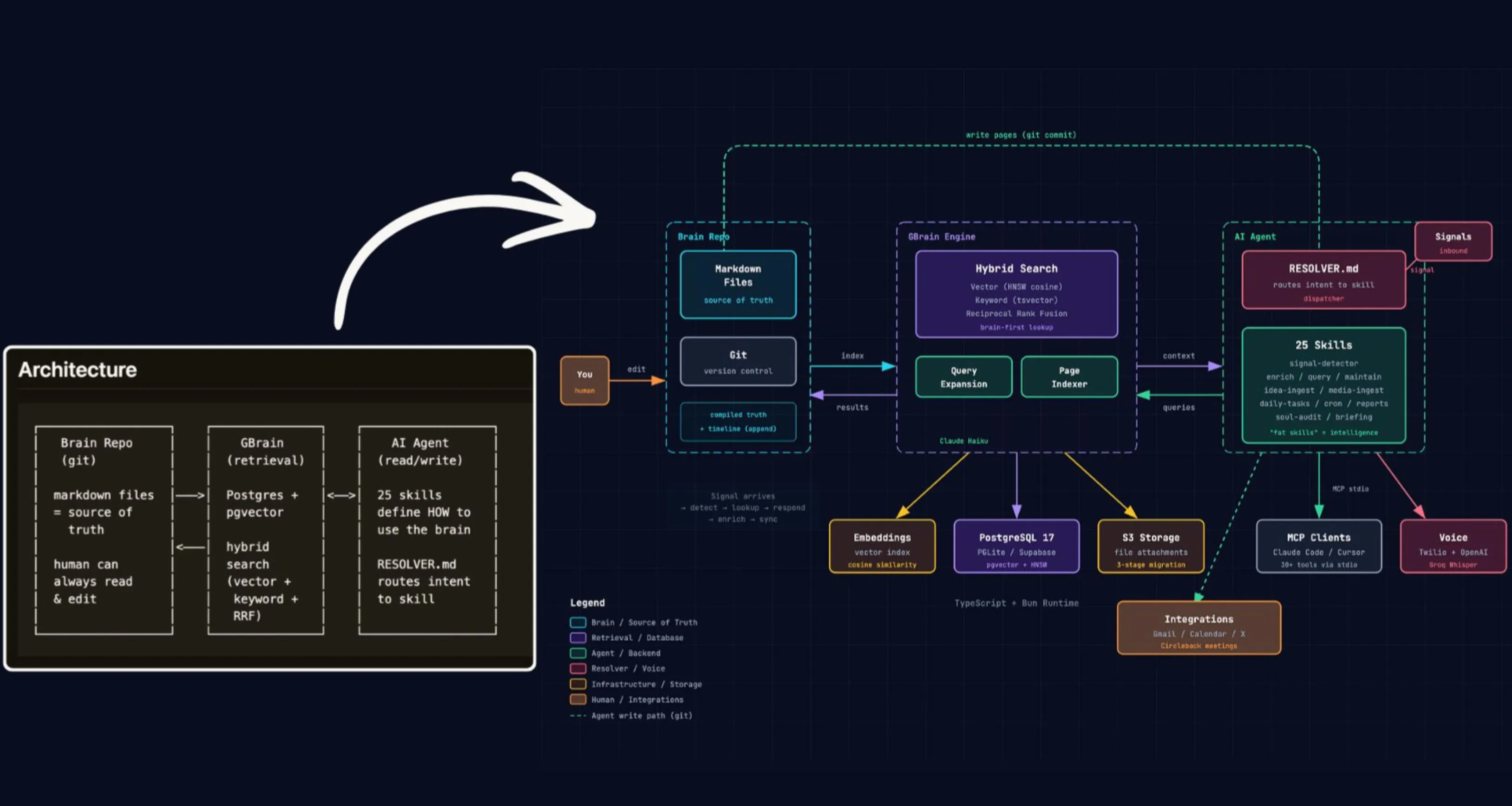
Same colors per component type, same dashed boundaries, same legend in the bottom-left corner. The only difference from the small diagram above is how many pieces there are.
Generating one doesn’t ask for much more than that: you describe the system, the agent writes the JSON, and whatever validation flags gets fixed. We tried it on this very blog’s own code — the one you’re reading right now: a couple of correction rounds in, we had a real diagram of how it’s put together, with Supabase, the Cloudflare Pages build, and the trigger that sends the email notice when someone comments. That’s the other use, beyond showing it off: understanding at a glance how a system fits together, instead of reading it file by file.
The five diagram types
The schema — and therefore the validation — differs depending on what you’re describing. Archify recognizes five:
| Type | What it’s for | What’s worth telling it |
|---|---|---|
| Architecture | Components, services, storage, trust boundaries | Scope, core components, the primary path |
| Workflow | CI/CD, approvals, tool calls, runbooks | Who’s involved, in what order, which branches and exceptions |
| Sequence | API calls, cache-miss fallback, auth, async traces | Who calls, who answers, what’s returned, and timing |
| Data Flow | Data pipelines, lineage, where sensitive data lives | Sources, transforms, where it’s stored, who consumes it |
| Lifecycle | States of something, retries, waits, terminal exits | The states, what event moves between them, how retries work |
When the diagram comes from a real repository
So far, every example starts from a description you give the agent. But you can also ask for the opposite: have it analyze an existing repository and build the diagram from the code.
That’s where a detail worth calling out shows up. When Archify builds a node
from real code, it tags it SRC n — n being how many references it found —
and that node stays linked to the exact file and line range, pinned to the
commit the diagram was generated from. If the code changes afterward, the
link still points at that specific version, not at whatever is in the file
today. That’s the difference between “a diagram that claims to represent the
code” and one where every box takes you back to the actual line that produced
it.
The same idea applies when comparing two versions of the same system: Architecture Delta takes two already-validated snapshots — before and after — and produces a third diagram marking what was added, what was removed, what changed, what moved. It’s meant for reviewing a large change before approving a PR, with the same guarantee that what you’re looking at came from real data, not a guess.
How to actually ask for it
You don’t need to learn the shape of the JSON to use Archify — the agent writes that. It’s enough to ask for it in chat, with the same clarity you’d use for anything else. With no repository, for something that doesn’t exist as code yet:
Use Archify to draw: Browser -> API -> Redis cache -> PostgreSQL fallback.With a repository that’s already written:
Analyze this repository, then use archify to create a high-level runtime
architecture diagram. Show 8–12 core components, one primary path, external
dependencies, and trust boundaries.
And once the first diagram is on screen, you refine it by talking, the same way as the rest of a conversation with the agent:
add Redis
move auth to the left
highlight the rollback path
Every one of those requests goes back through the full five steps: the agent rewrites the JSON, it gets validated again, and only then does what you see change. There’s never a drawing that skipped that filter.
Comments
Sign in to comment and to like this article.
No comments yet. Be the first to write one.